
AB Remote Support App

Introducing the ability to receive full Marvel cochlear implant programming through your smartphone, without a visit to the clinic.
The AB Remote Support app is designed to allow remote fitting support for Naída CI M/Sky CI supported devices using Bluetooth connectivity. The app is designed to be the interface between the mobile device and Marvel supported devices to allow hearing care professionals to remotely program recipients in Target CI over WiFi/cellular connection.
You may access the user manual in PDF format at: https://www.advancedbionics.com/ifu.
Sideloading an APK on Android
This guide uses a Google Pixel (the screenshots are from Android 17); other phones differ mainly in where the setting lives.
1. Open the download link
On the phone, open the link below in a web browser (for example Chrome). The download starts automatically and the screen shows "Downloading…" with the file name and progress.

2. Allow the download

3. Open Settings

Go back to the home screen, swipe up to open the app list, and tap Settings.
4. Tap Apps

5. Scroll down and tap Special app access

6. Tap Install unknown apps

7. Choose the app you will install from

Pick the app you will open the APK with. Here it is Files by Google. Every app starts as "Not allowed".
8. Turn on Allow from this source

Switch the toggle on. It is shown off here, which is how it looks before you change it. Android warns that apps from unknown sources can put your phone and data at risk, so only continue with a file you trust.
9. Open the Files app

Go back to the home screen, swipe up to open the app list, and tap Files.
10. Tap Downloads

In the Categories section, tap Downloads.
11. Find the APK

The APK is listed under Today if you just downloaded it.
12. Tap the three-dot menu, then Install

13. Confirm Install

Android asks "Install this app?" and shows the app's name. Tap Install.
14. Let Google Play Protect scan the app

If Play Protect has not seen the app before, it recommends a scan. Tap Scan app.
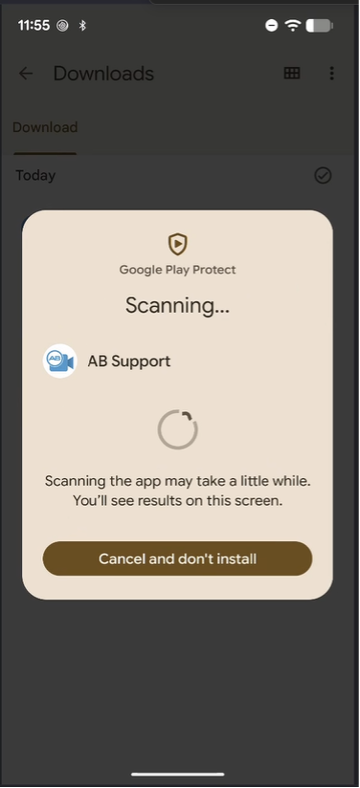
The scan can take a little while.
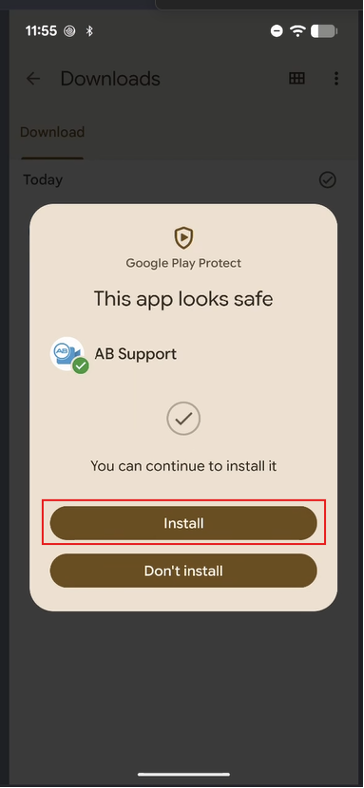
When it finishes, the dialog reads "This app looks safe". Tap Install to continue.
15. Check that it installed, then open the app

A message at the bottom of the screen confirms the install.
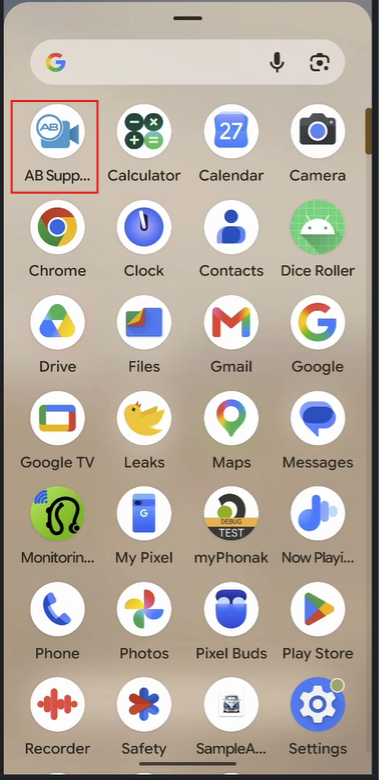
The new app is now in your app list.
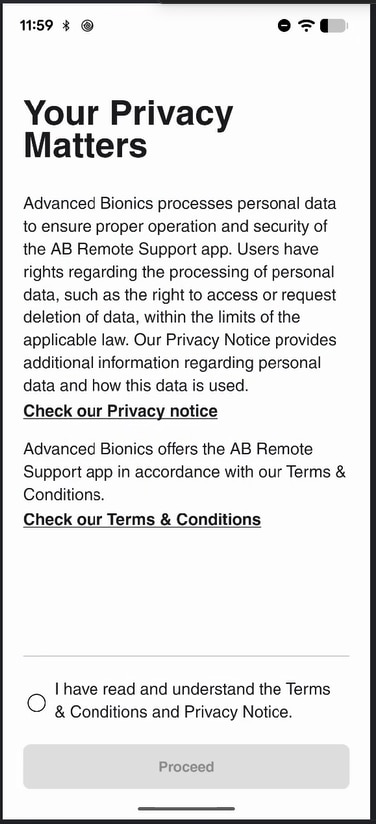
Tap it to open it. This app starts with its own privacy notice, which you accept before you can continue.
If the new app is an update to one already on the phone and the install fails, uninstall the old version first (Settings > Apps > the app > Uninstall) and install again (from step 9). Uninstalling removes the app's data.
If you are on a Samsung Galaxy
Samsung's Auto Blocker can stop installs from unknown sources even after you allow your browser, so turn it off first. On Galaxy phones it is under Settings > Security and privacy > Auto Blocker. Turn the toggle off.
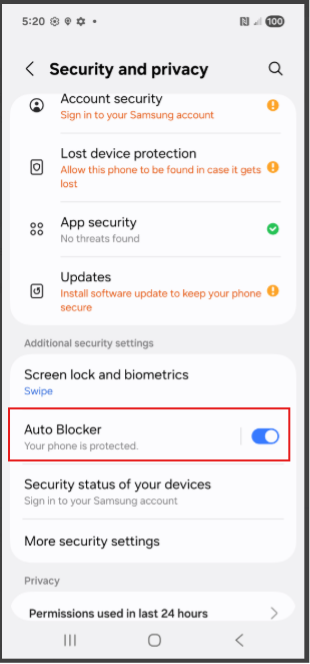
Toggle On
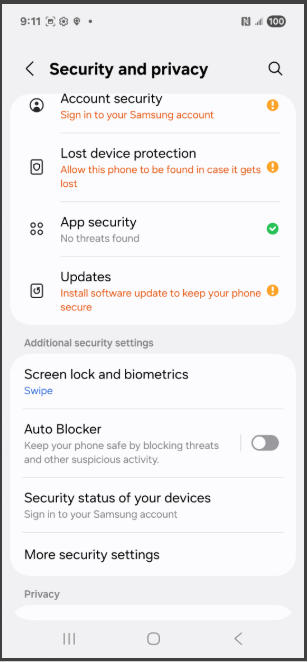
Toggle Off
Then continue with the install steps above. Turn Auto Blocker back on afterward if you want that protection. On Samsung phones the "Install unknown apps" list can also sit under Biometrics and security, depending on the One UI version. Searching Settings for "unknown apps" finds it either way.
Troubleshooting and cleanup
- Samsung says "Unknown app blocked": turn off Auto Blocker (see the Samsung section).
- When you are done: go back to Settings > Apps > Special app access > Install unknown apps and switch the permission off for that app, so nothing else can install packages through it.


Learn
Explore
Connect
About AB
Contact Us
